Start here
Do these 6 steps once. It takes about 10 minutes. After that, you just open your call and read.
The 6 steps
Find your key email
Right after you pay, you get an email from The Closer's Anchor. Lemon Squeezy sends it for us. Your license key is inside. It looks like this: XXXXXXXX-XXXX-XXXX-XXXX-XXXXXXXXXXXX
Can't find it? Look in Spam and Promotions. Still nothing after 10 minutes? Email easy.automationflow@gmail.com.
Add it to Chrome
- In the email, click Install from the Chrome Web Store.
- Click Add to Chrome, then Add extension.
- Pin it so it's easy to find: click the puzzle piece at the top right of Chrome, then the pin next to The Closer's Anchor. You will now see the ⚓ icon.
Use Google Chrome on a laptop or desktop. It does not work on a phone.
Turn it on with your key
- Click the ⚓ icon. A panel opens on the right.
- Copy your license key from the email and paste it in the box.
- Click Activate. You will see "Activated. Welcome aboard."
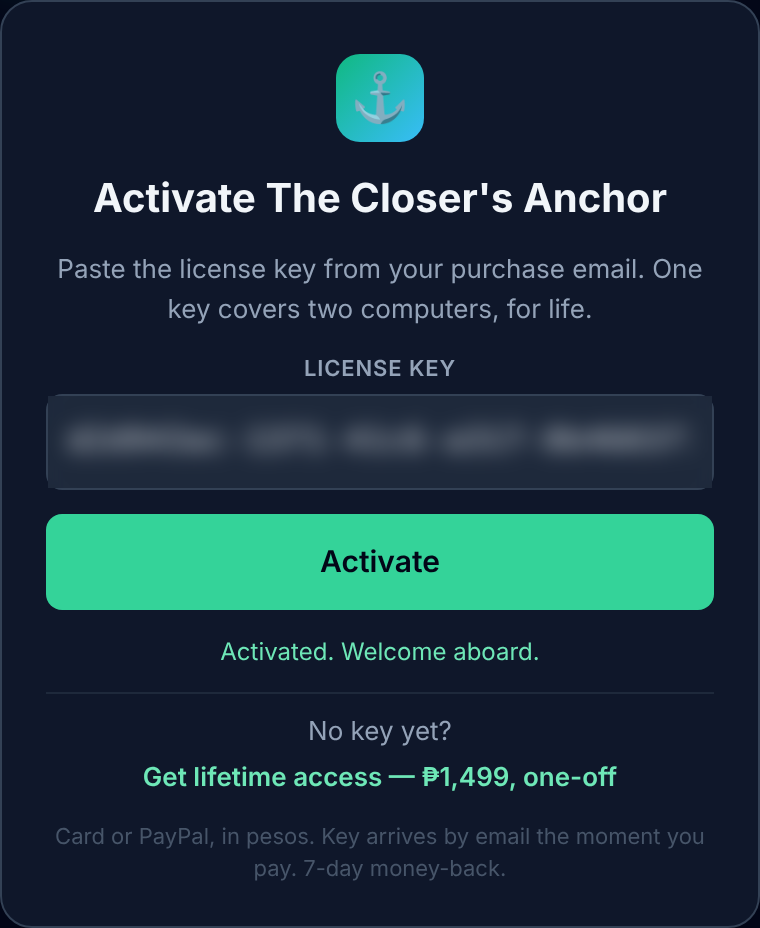
One key works on 2 computers.
Get your free Google key
The answers come from Google's AI. Google gives you a free key. You make it once. It takes about 2 minutes. You don't need a card.
- Open aistudio.google.com/apikey. Sign in with any Google account.
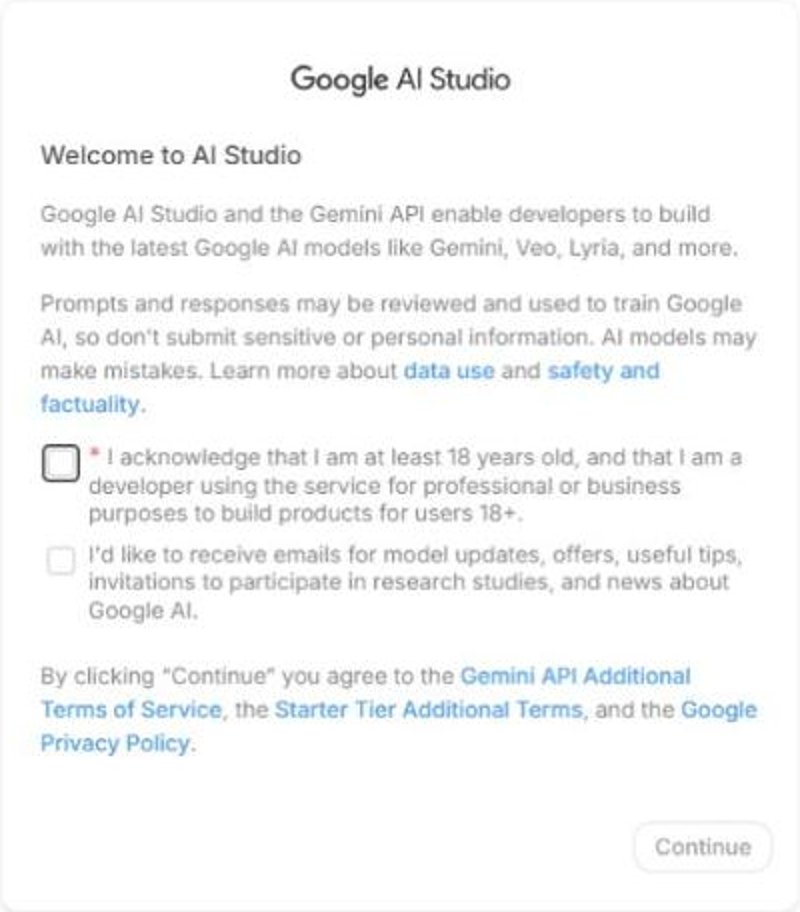
- First time there? You will see "Welcome to AI Studio". Tick the first box (the one that says you are 18 or older). Then click Continue.
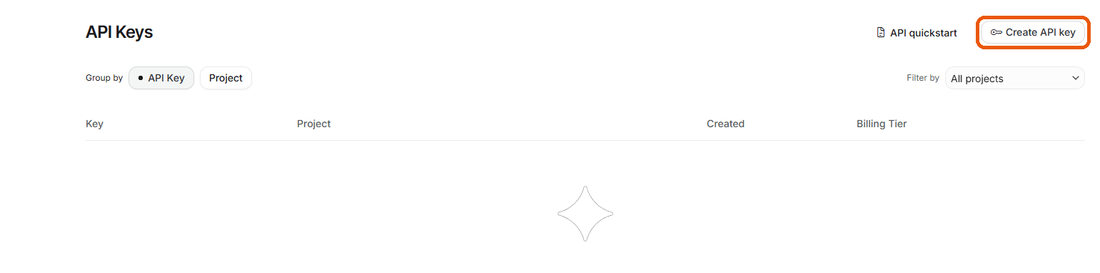
- Click Create API key at the top right.
- A box opens. Leave the name as it is.
- Look at Choose an imported project.
- It shows a project? Good. Go to the next step.
- It says "No Cloud Projects Available"? Click it. Click + Create project. Then click Create project.
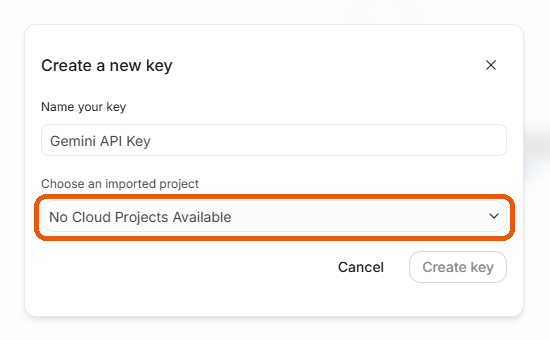
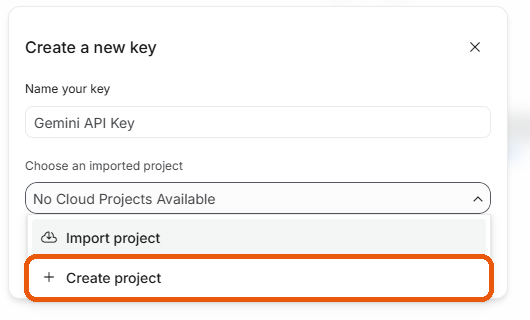
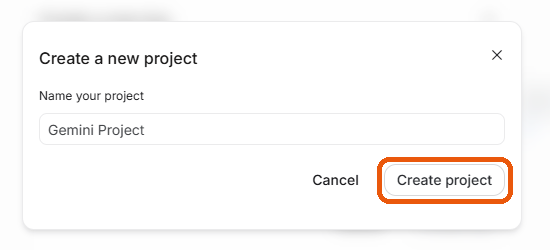
- Click Create key.
- Click Copy key. Your key starts with
AQ.(older keys start withAIza; both work).
Google shows an error instead? See If Google shows an error below. It's a quick fix.
Your Google key is private, like a password. Don't post it, screenshot it or send it to anyone.
Now paste it in
- Click the ⚓ icon to open the panel.
- Paste the key in the yellow box "Add your free Google key". Click Save.
- Wait a few seconds. It checks your key with Google. You should see "Your key works."
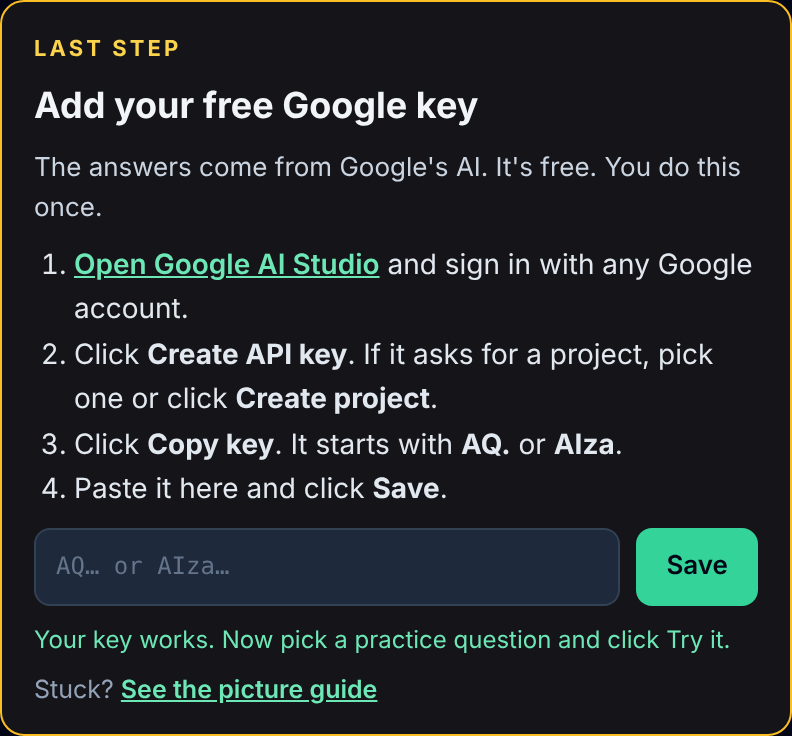
The yellow box says keys must start with AIza? Your copy is still updating. Click ⚙ Settings at the bottom of the panel (it may say ⚙ API configuration). Paste the key in API key and click Save configuration.
Practice once
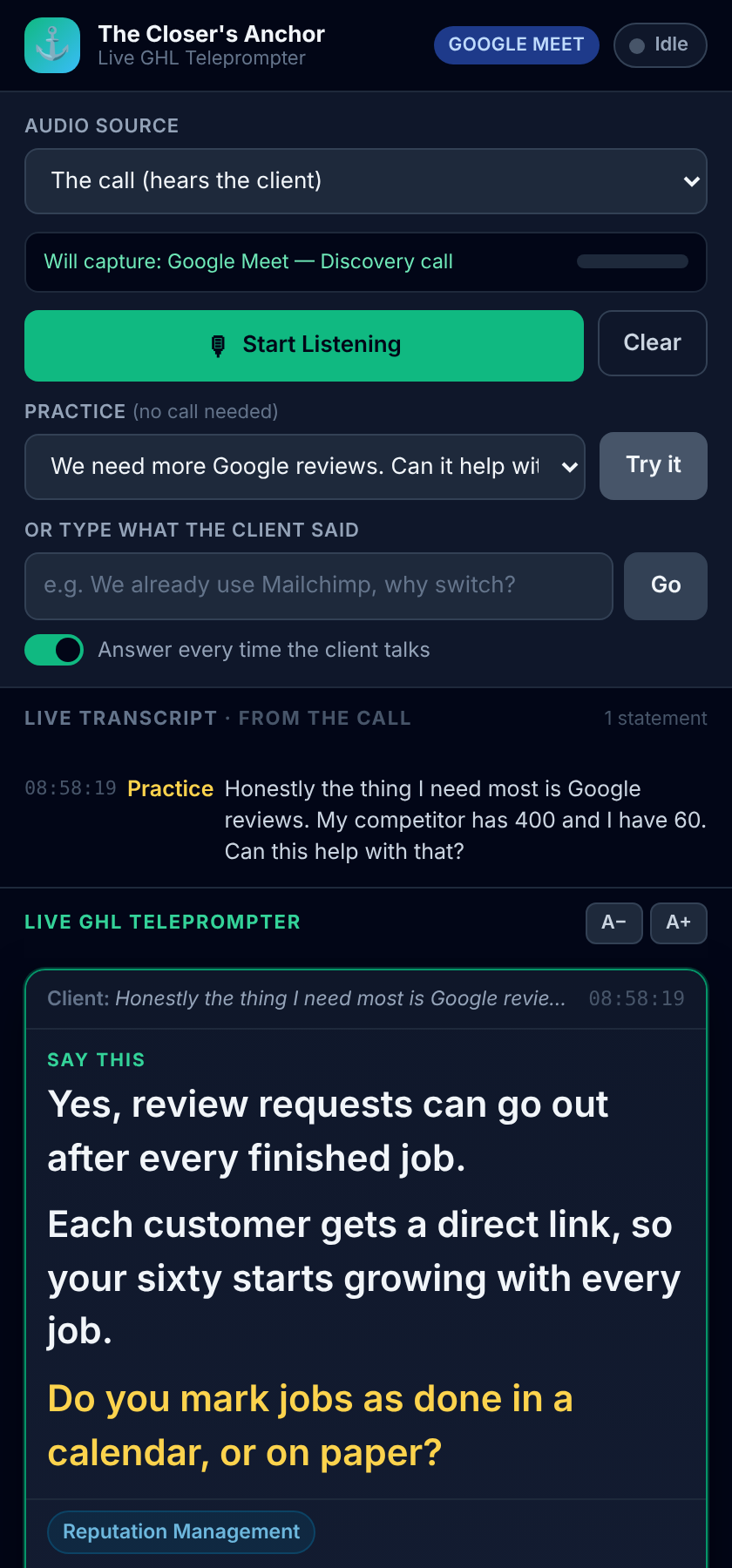
- Under Practice, pick a client question.
- Click Try it.
- 3 short lines show up. Read them out loud. Then ask the yellow question.
Use it on a real call
- Open your Google Meet call in Chrome. For Zoom, click "Join from your browser". The Zoom app won't work.
- On the call tab, click the ⚓ icon once.
- Wait 2 seconds. The top of the panel says Active · live in green. It's listening.
- Still says Idle? Click Start Listening once.
- When the client stops talking, read the 3 lines. Look at the camera when you can.
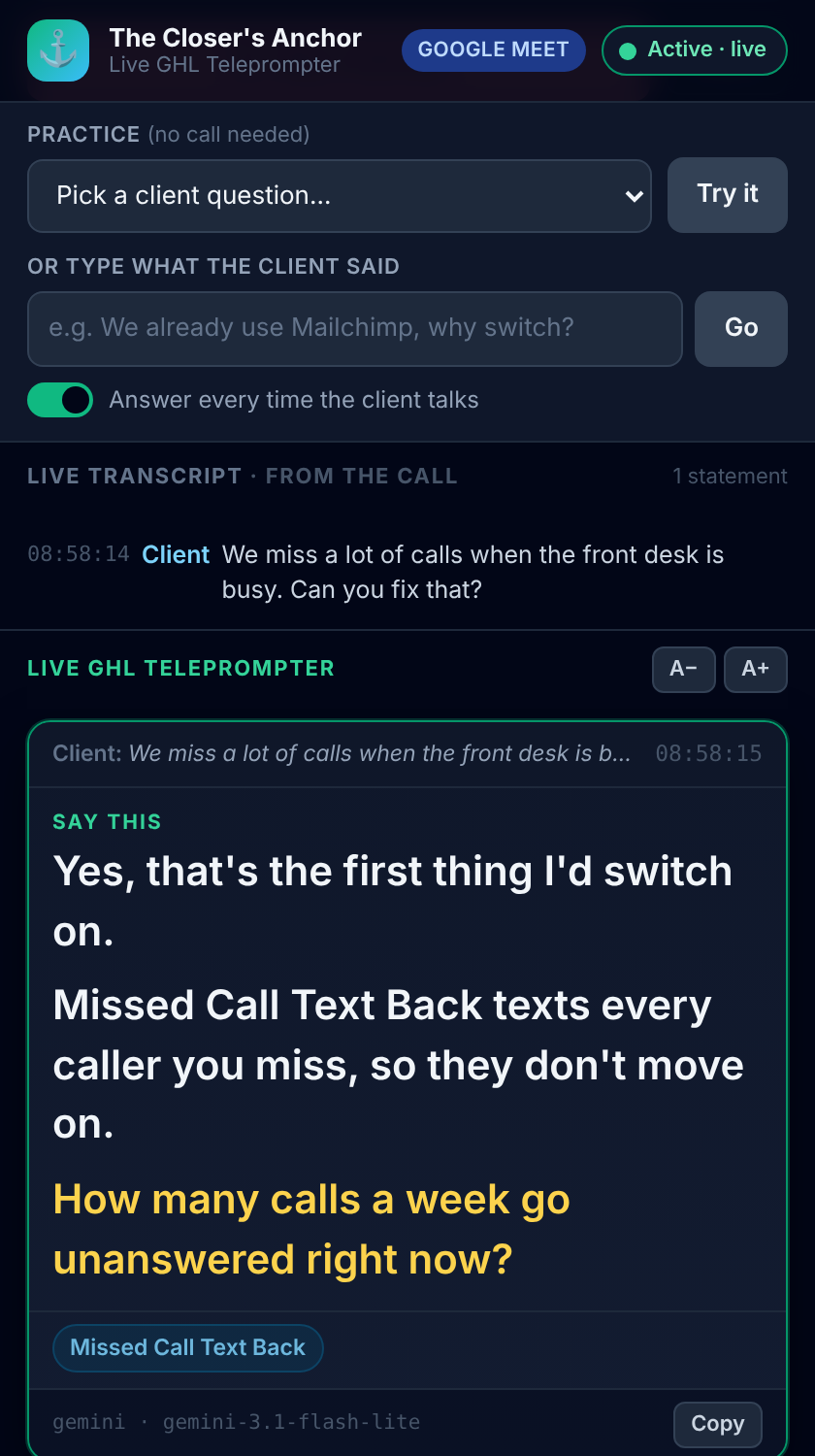
At the start of the call, say: "I use a notes app on my calls." Only you can see the panel.
If Google shows an error
- "Unable to create API key"
- Your Google account needs one more setup step. It takes 1 minute and it's free.
- In that message, click Google Cloud Console.
- A new tab opens. Tick the box "I agree to the Google Cloud Platform Terms of Service". Leave the email box empty. Click Agree and continue.
- You see New Project. Don't change anything. Click Create. Wait 30 seconds.
- Go back to the AI Studio tab. Press F5.
- Click Create API key. Click the project box. Click Import project.
- Tick your new project. Click Import. Then click Create key and Copy key.
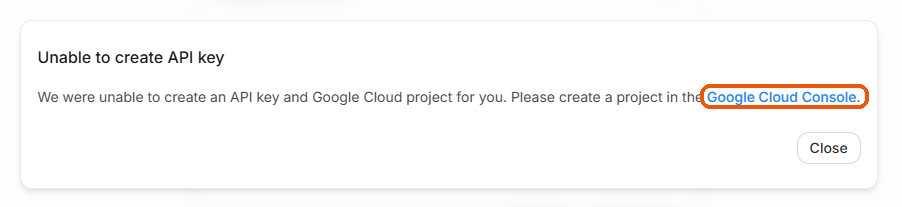
Click Google Cloud Console. 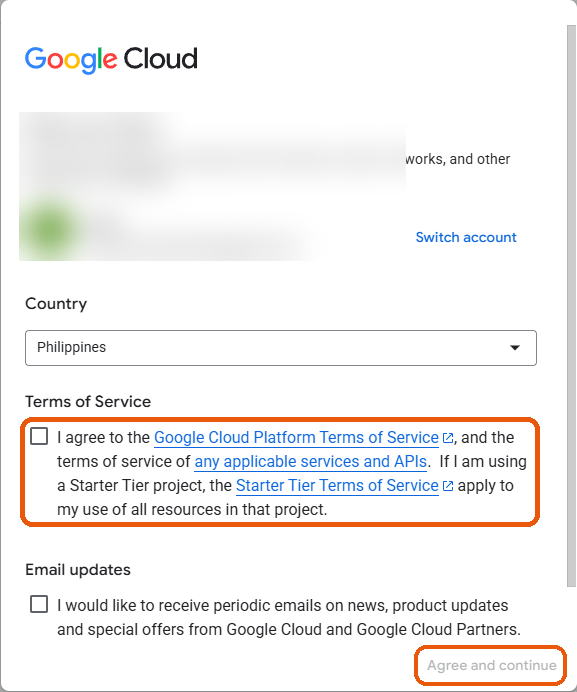
Tick the Terms box. Click Agree and continue. 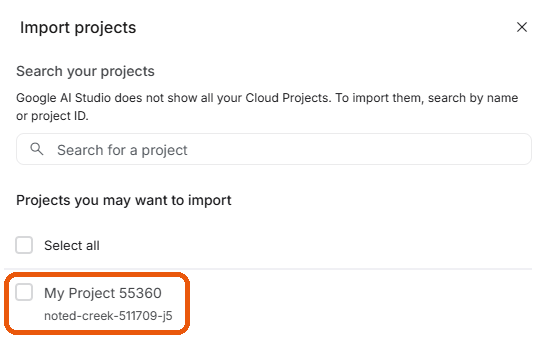
Back in AI Studio: tick your project, then click Import. - "Google blocked this key" or "denied access"
- Google sometimes blocks keys from some accounts. We can't change that. Sign in to AI Studio with a different Google account (any Gmail works), make a new key, and paste it in. Then delete the old key in AI Studio.
- "Google says this key is not right"
- Part of the key is missing. In AI Studio, click your key, click Copy key, and paste it again.
If something goes wrong
- It says "Key not found".
- Copy the whole license key from your email again. Don't add spaces.
- It says the key is already on 2 computers.
- On your old computer, open the panel, click Settings, then Deactivate this computer. Or email us and we will reset it.
- The panel says "Your Google key is not working".
- Do what the red box says. Most of the time: make a new key with a different Google account, then paste it in the box and click Save.
- The answers don't fit, or it says "library".
- Your Google key is missing or not working. Do Step 4 again and paste the key.
- It doesn't hear the client.
- Is the call open in Chrome? Click the ⚓ icon on the call tab once. For Zoom, join from your browser.
- It says "Chrome is still holding the call sound" (or "active stream").
- Close the Meet or Zoom tab. Join the call again. Then click the ⚓ icon once.
- Still stuck?
- Email easy.automationflow@gmail.com. Tell us which step you are on.